How to Convert HEIC to JPG on iPhone (4 Free Ways)
Four free ways to turn iPhone HEIC photos into JPGs without a computer: the Files app trick, Shortcuts, sharing settings and switching your camera to JPG.

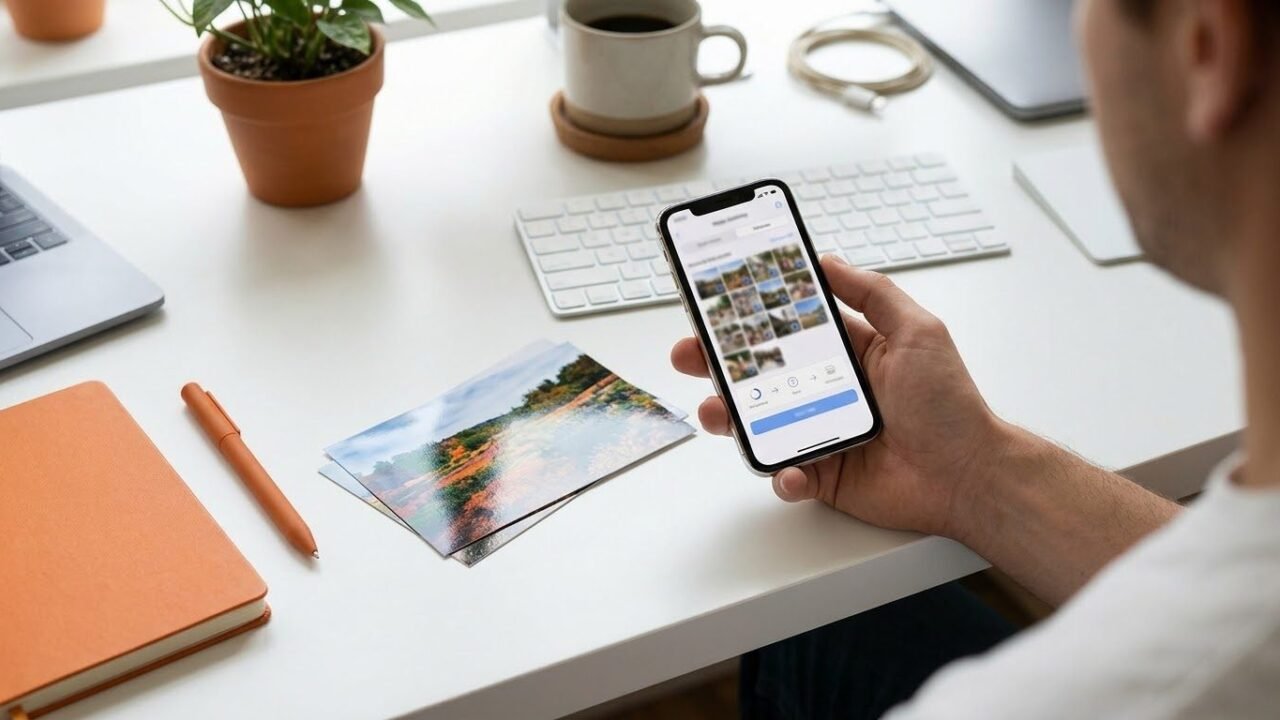
iPhones save photos as HEIC by default to save space. Most of the time you never notice, because iOS converts photos to JPG automatically when you share them with many apps. But some upload forms and websites still reject HEIC. Here are four free ways to get a JPG straight from your iPhone.
Method 1: Copy into the Files app
This is the quickest no-app method and works for one or many photos.
- Open Photos and select the photo or photos.
- Tap the Share button and choose Copy Photo (or Copy Photos).
- Open the Files app and go to a folder, for example On My iPhone.
- Long-press an empty area and tap Paste.
The pasted images are saved as JPG files. Check by long-pressing one and choosing Get Info, which shows the file type.
Using Save to Files from the Share sheet instead of Copy and Paste usually keeps the HEIC format, so use Copy and Paste for this trick.
Method 2: A Shortcuts action
The built-in Shortcuts app can convert photos in bulk.
- Open Shortcuts and tap + to create a new shortcut.
- Add Select Photos and turn on Select Multiple.
- Add Convert Image and set the format to JPEG.
- Add Save to Photo Album (or Save File to put them in Files).
- Name it “Convert to JPG” and run it whenever you need.
Saving converted images back to Photos creates duplicates, so delete the originals if you no longer need them.
Method 3: Let sharing convert automatically
When you attach a photo to Mail, Messages to non-Apple phones, or upload it through many websites in Safari, iOS often sends a JPG automatically. If a site still receives HEIC, try choosing the photo through the Choose File button rather than dragging, or use Method 1 first.
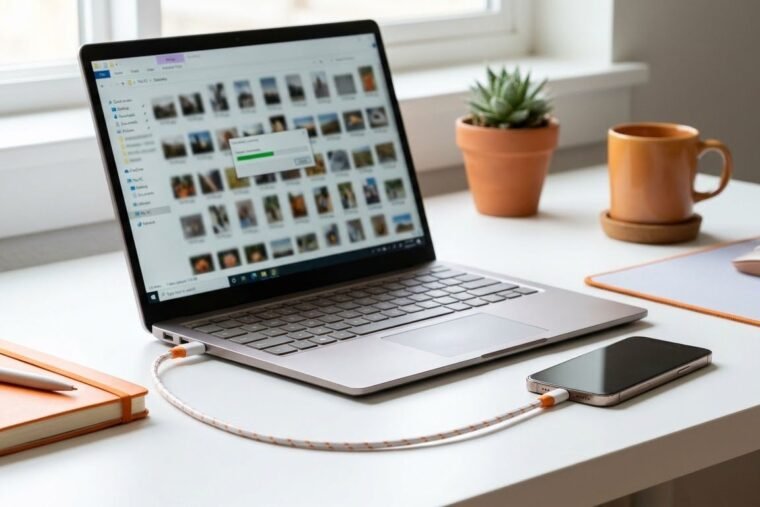
For transfers to a computer by cable, go to Settings > Photos and set Transfer to Mac or PC to Automatic. Photos are converted to JPG as they are copied.
Method 4: Take JPG photos from now on
- Open Settings > Camera > Formats.
- Choose Most Compatible.
New photos are saved as JPG. The downside is larger files, so your storage fills faster. Some features, such as recording certain high-resolution or ProRAW formats, require High Efficiency, so you may need to switch back for those.
Which method should you use?
| You want to… | Best method |
|---|---|
| Convert a few photos right now | Files app copy and paste |
| Convert many photos regularly | Shortcuts action |
| Send photos to a Windows PC | Transfer to Mac or PC: Automatic |
| Never deal with HEIC again | Camera format: Most Compatible |
HEIC on iPhone questions
How do I change a photo from HEIC to JPG on iPhone?
Select the photo in Photos, tap Share, choose Copy Photo, then paste it into a folder in the Files app. The pasted copy is a JPG.
How do I stop my iPhone from taking HEIC photos?
Go to Settings > Camera > Formats and choose Most Compatible. New photos will be JPG.
Does converting HEIC to JPG reduce quality?
Slightly, because JPG uses different compression, but the difference is rarely visible for normal photos. JPG files will be larger.
Can I convert HEIC to JPG on iPhone without an app?
Yes. The Files app copy and paste trick and the built-in Shortcuts app both work without downloading anything.