How to Convert HEIC to JPG on Windows 10 and 11
iPhone photos arrive on Windows as HEIC files that some apps will not open. Here is how to view them, convert one or many to JPG, and stop your iPhone from creating them in the first place.

HEIC is the photo format iPhones use by default. It produces smaller files than JPG at similar quality, but many Windows apps, websites and older programs cannot open it. You can convert HEIC to JPG on Windows for free in a few minutes.
Step 1: Make Windows able to open HEIC
Windows 10 and 11 need two free or low-cost extensions from the Microsoft Store to read HEIC photos:
- HEIF Image Extensions (free from Microsoft)
- HEVC Video Extensions, which HEIC photos rely on. Some PCs already have it installed by the manufacturer; otherwise Microsoft sells it in the Store for a small one-time price.
Search for each name in the Microsoft Store app and install them. After that, HEIC files show thumbnails in File Explorer and open in the Photos app.
Method 1: Photos app (one photo at a time)
- Double-click the HEIC file to open it in Photos.
- Click the … (See more) menu and choose Save as, or open the editor and use Save as copy. Menu labels vary between Photos versions.
- Choose JPG as the file type and save.
Method 2: Paint (works on any recent Windows)
- Right-click the HEIC file and choose Open with > Paint.
- Click File > Save as > JPEG picture.
- Give it a name and save.
Paint is simple and reliable once the extensions above are installed.
Method 3: Convert many HEIC files at once
Windows has no built-in batch converter, but these free options work well:
- Microsoft PowerToys Image Resizer resizes and can re-encode a batch of selected images to JPG from the right-click menu. Set the encoder to JPEG in its settings.
- IrfanView with its plugins has a Batch Conversion tool (File > Batch Conversion/Rename) that converts whole folders.
- ImageMagick (command line) can convert a folder with one command, for example
magick mogrify -format jpg *.heic.
Method 4: Let your iPhone send JPGs instead
The easiest fix is to stop the problem at the source.
Convert automatically when transferring
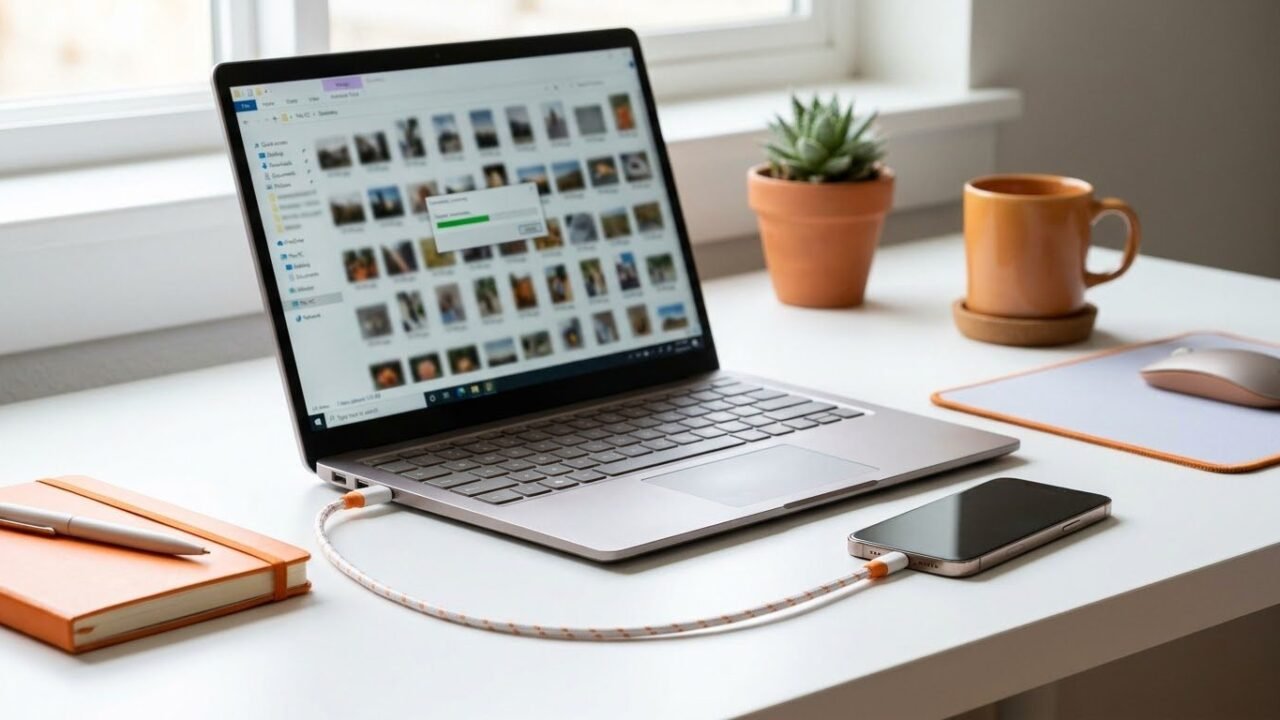
On the iPhone, go to Settings > Photos and under Transfer to Mac or PC choose Automatic. When you copy photos to Windows with a USB cable, the iPhone converts them to JPG on the way.
Shoot JPG from now on
Go to Settings > Camera > Formats and choose Most Compatible. New photos are saved as JPG (and videos as H.264). Files will be larger, and existing photos stay HEIC.
Online HEIC converters
Many websites convert HEIC to JPG without installing anything. They work, but you upload personal photos to a third-party server. That is worth avoiding for photos of documents, IDs or family. The offline methods above are just as quick.
HEIC vs JPG: quick comparison
| HEIC | JPG | |
|---|---|---|
| File size | Smaller at similar quality | Larger |
| Compatibility | Limited on Windows, older apps and some websites | Works almost everywhere |
| Extras | Can store depth data, Live Photo info, 16-bit color | Basic photo only |
| Best for | Storing photos on Apple devices | Sharing, uploading, printing |
HEIC on Windows questions
Why can’t I open HEIC files on Windows?
Windows needs the HEIF Image Extensions and HEVC Video Extensions from the Microsoft Store to read HEIC photos. Once installed, Photos and Paint can open them.
How do I convert HEIC to JPG on Windows for free?
Install the free HEIF Image Extensions (and HEVC if it is not already on your PC), open the photo in Paint and choose File > Save as > JPEG picture.
How do I convert many HEIC files to JPG at once?
Use a free batch tool such as IrfanView’s Batch Conversion, PowerToys Image Resizer set to JPEG, or ImageMagick from the command line.
How do I stop my iPhone from saving HEIC?
Go to Settings > Camera > Formats and choose Most Compatible. To convert only when transferring, set Settings > Photos > Transfer to Mac or PC to Automatic.