How to Convert MP4 to MP3 for Free (Windows, Mac and Phone)
Pull the audio out of any MP4 video and save it as an MP3 with free tools: VLC, Audacity, a one-line FFmpeg command, and options for iPhone and Android.

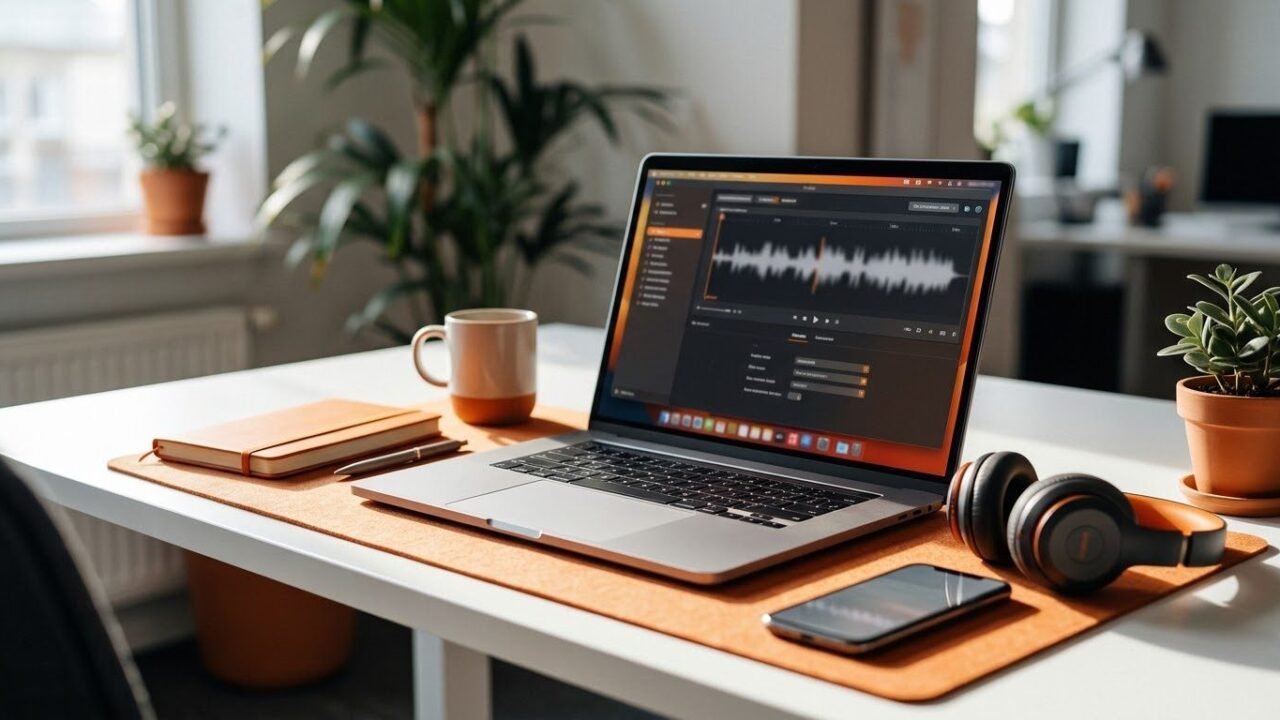
Converting MP4 to MP3 means extracting the audio track from a video and saving it as an audio file, useful for lectures, interviews, voice memos recorded as video, or your own music videos. The free tools below run on your own computer, so your files never leave it.
Copyright note: only convert videos you own or have permission to use. Downloading and converting copyrighted videos from streaming sites usually breaks their terms of service and may break copyright law.
Method 1: VLC Media Player (Windows, Mac, Linux)
VLC is free, open source and probably the easiest option.
- Install VLC from the official site, videolan.org.
- Open VLC and choose Media > Convert / Save (on Mac: File > Convert / Stream).
- Add your MP4 file and click Convert / Save.
- Under Profile, choose Audio – MP3.
- Choose a destination file name ending in .mp3 and click Start.
The progress bar moves along the timeline while VLC converts. Menu names on Mac differ slightly but the steps are the same.
Method 2: Audacity (free audio editor)
- Install Audacity and, if prompted, the FFmpeg library it uses to open video files.
- Choose File > Import > Audio and select the MP4. The audio track appears.
- Trim, cut or adjust the volume if you want.
- Choose File > Export Audio, pick MP3, set the quality and save.
Audacity is the best choice if you also want to edit the audio, such as removing silence or cutting a clip.
Method 3: FFmpeg (fastest, one command)
FFmpeg is the free engine behind many converters. After installing it, run:
ffmpeg -i video.mp4 -vn -b:a 192k audio.mp3-vndrops the video.-b:a 192ksets the audio bitrate. Use 128k for speech and 192k to 320k for music.
To convert every MP4 in a folder on Mac or Linux:
for f in *.mp4; do ffmpeg -i "$f" -vn -b:a 192k "${f%.mp4}.mp3"; doneIf you just need the audio and do not care about MP3 specifically, many MP4 files already contain AAC audio, which you can copy out without re-encoding: ffmpeg -i video.mp4 -vn -c:a copy audio.m4a. It is instant and loses no quality.
On Mac without extra software
QuickTime Player can save only the sound: open the video, then choose File > Export As > Audio Only. This creates an M4A file, which plays almost everywhere. If you specifically need MP3, use VLC or FFmpeg.
On iPhone and Android
- iPhone: the Shortcuts app has an Encode Media action with an Audio Only option that saves M4A. For MP3, use a reputable converter app or a computer.
- Android: use a reputable offline converter app. Check permissions and reviews before installing.
Which bitrate should you choose?
| Bitrate | Quality | Size per minute (approx.) | Good for |
|---|---|---|---|
| 96 to 128 kbps | Fine for voice | 0.7 to 1 MB | Lectures, podcasts, interviews |
| 192 kbps | Good | 1.4 MB | General music listening |
| 320 kbps | Highest MP3 | 2.4 MB | Music where quality matters |
You cannot add quality that was not in the original. If the video’s audio is low quality, a high bitrate just makes a bigger file.
MP4 to MP3 questions
What is the easiest free way to convert MP4 to MP3?
VLC Media Player: choose Media > Convert / Save, add the MP4, pick the Audio – MP3 profile and start the conversion.
Can Windows convert MP4 to MP3 without extra software?
Not directly with built-in apps. Free tools such as VLC, Audacity or FFmpeg are the simplest options.
Does converting MP4 to MP3 lose quality?
Re-encoding to MP3 loses a little quality. Copying the original AAC audio to an M4A file with FFmpeg avoids any loss.
Is it legal to convert MP4 to MP3?
Converting your own videos is fine. Converting copyrighted content you do not own or have permission to use may break copyright law and platform terms.